
A LITTLE GUIDANCE GOES A LONG WAY
Find your way.
Make it your own.
The practical details, the person behind Traqu,
and a little room to say thanks.
Less cleanup.
A clearer first day.
Desktop imports include PDF, DOCX, plain text, Markdown, JSON, CSV and YAML. The import review lets you check the structure, edit task titles and resolve warnings before saving.
For AI-generated plans, use Traqu’s JSON format or explicit Markdown headings: Week 1 → Day 1, Day 2…. Put a real action in each checkbox. Keep time slots, links and explanations attached to that action.
# Week 1: Foundations
## Day 1 · 2026-11-11
- [ ] Learn how vectors work
Duration: 30m
Resource: a link to the lesson
## Day 2 · 2026-11-12
- [ ] Solve an array problem
Those dates are an example, not a suggested schedule. Use your own dates. If your source has no days, review the import rather than assuming a weekly list can be split perfectly.
Why did some PDF content look wrong?
PDFs store page layout, not always a clean reading order. Multi-column layouts and complex tables can be ambiguous. Image-only scans require OCR first. Prefer the matching JSON sidecar when you have it; always review the parsed result.
Open a week.
Start a day.
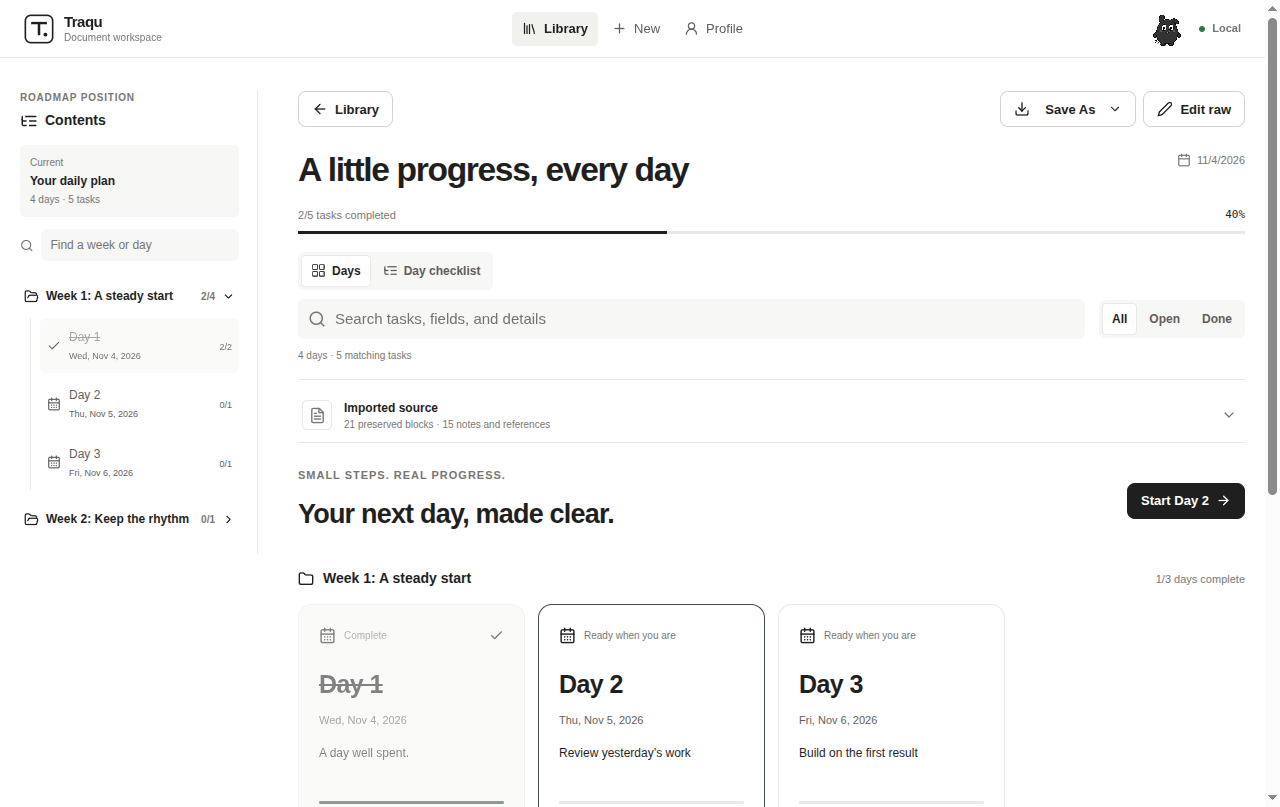
Weeks act as folders. Each dated day has a card with its own tasks and progress. Choose Start Day 1 to focus on its checklist, then move to the next day when you are ready.
Check off work as you complete it. Add notes, resources or completion evidence without losing the original context. Completed day cards fade and get a strike-through so you can see the work behind you.
Your activity calendar records actual check-offs. Streaks and the snake replay reflect that history; they are not a promise that every imported task has been done.
More than a name.
Add and crop a profile photo, pick a cover, choose an activity palette and set a realistic seven-day target. Leave yourself a return note for the days you need a little momentum.
In 1.6+, choosing Use photo saves it immediately. Other edits use the save bar above the form. Profile cards can include your photo, Qu and actual activity; review the card before saving or sharing it.
Qu’s eyes follow your cursor at rest. Click to hop, double-click to run, press S to sway or Escape to rest. Reduced-motion preferences keep the interface calmer.
Your workspace,
on your device.
The desktop app stores its workspace locally in SQLite. Android uses local browser storage inside the app. You do not need an account to use either. There is no automatic cloud sync, and no application-level database encryption.
In desktop 1.7+, recovery copies are also saved outside app data in Documents → Traqu Backups. Use Save backup now, Restore backup or Change folder in Library or Profile → Preferences. Older versions need a manual export. Keep a separate copy. Export before uninstalling, clearing app data or replacing an Android installation. A profile image and personal notes can be included in that backup.
On desktop, File → Show Data Folder opens your data location. The current folder is called Traqu; older installations may still use Traqo. Keep that folder when upgrading.
What happens when I connect an AI agent?
The local MCP server reads the same desktop database. Read-only is the default; editing is optional. Your AI client may send returned content to its model provider. This website does not host your plans or provide a cloud bridge.
Choose a connection →How do I remove Traqu?
Use your operating system’s app manager for an installed app. On Ubuntu, uninstall the traqo-desktop package through your package manager; an AppImage is removed by deleting the downloaded AppImage file. Export your workspace first. Removing an AI client connection is separate: remove Traqu from that client’s MCP settings.
Traqu, on Android.
The APK is a standalone offline app—not a companion that requires your desktop to be running. It supports daily plans, task completion, profile photos, activity history, workspace backup and restore, and native saving/sharing.
JSON and Markdown are the most reliable import choices. PDF and DOCX imports extract text; complex layouts can need review. Desktop CSV import and some legacy recovery features differ. Live local MCP connections are a desktop feature.
The sideload APK uses a development signing certificate. Preserve a backup before updating or reinstalling; do not assume every build has a permanent production signing identity.
Get the Android APK ↓All the details.
Nothing hidden away.
Read a manual here, download its Markdown file, or explore the source on GitHub. These are the project’s actual documents, bundled with this site.
Hi, I’m Gurtejbir.
I’m building Traqu around a simple idea: a useful plan should make today easier to start. The app brings your documents, daily tasks and progress into one quiet space, with a little company from Qu.
Traqu is open source. If something feels confusing, broken or missing, share a clear example on GitHub. Thoughtful feedback helps shape what comes next.
Report a problem or suggest a feature →A cup of coffee
goes a long way.
Traqu is free to download. If you’d like to support the next update, you can buy me a coffee. A GitHub star or a thoughtful bug report is welcome, too.
